Google Chat Integration
Connect Community Questions with Google Chat to receive notifications in your chat spaces when Q&A activity occurs.
Create a Webhook in Google Chat
First, create an incoming webhook in your Google Chat space:
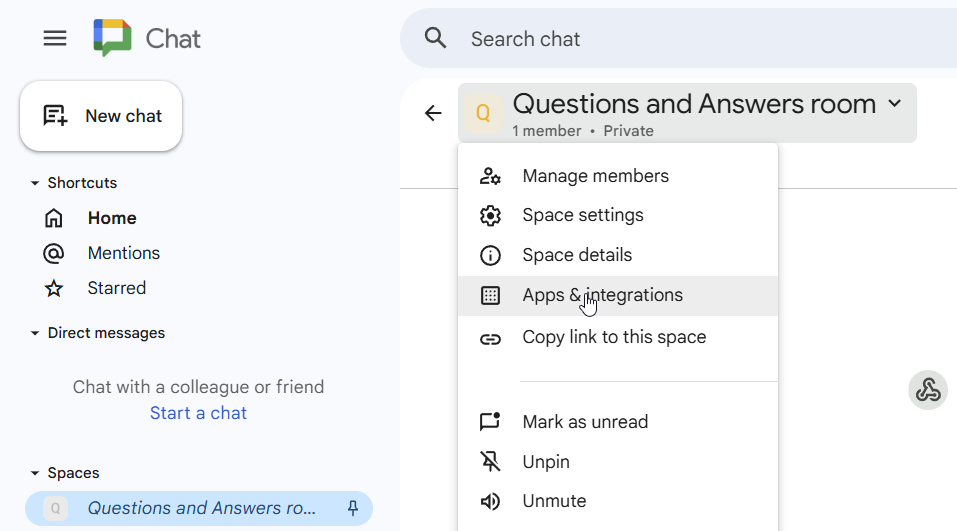
1. Open the Google Chat space where you want notifications. Click the space name dropdown and select Apps & integrations.
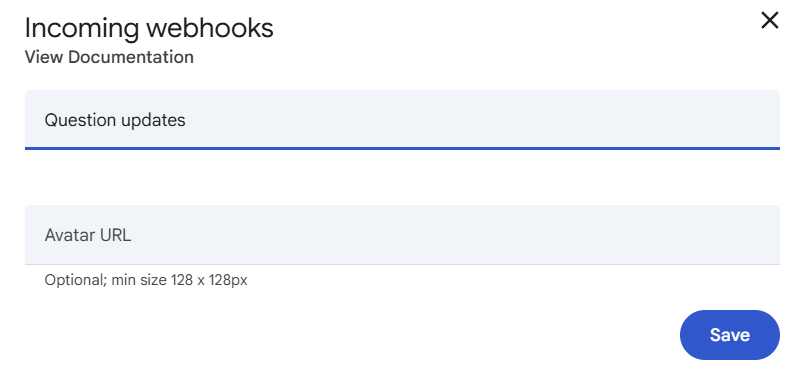
2. Click Add webhooks, enter a name (e.g., "Question updates"), and click Save.
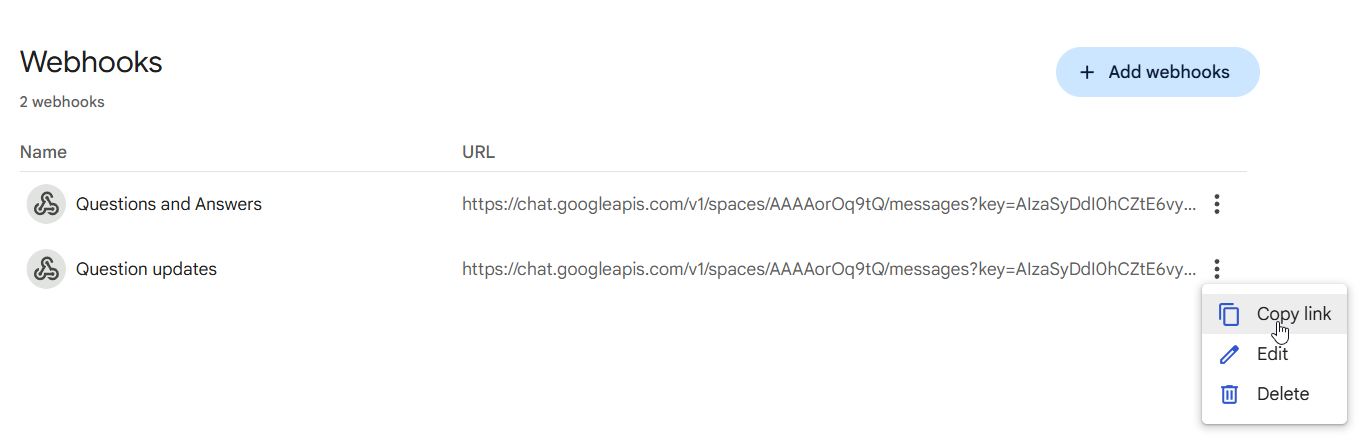
3. In the webhooks list, click the three dots menu next to your webhook and select Copy link.
Connect to Confluence
- Go to Space Settings → Content → Questions
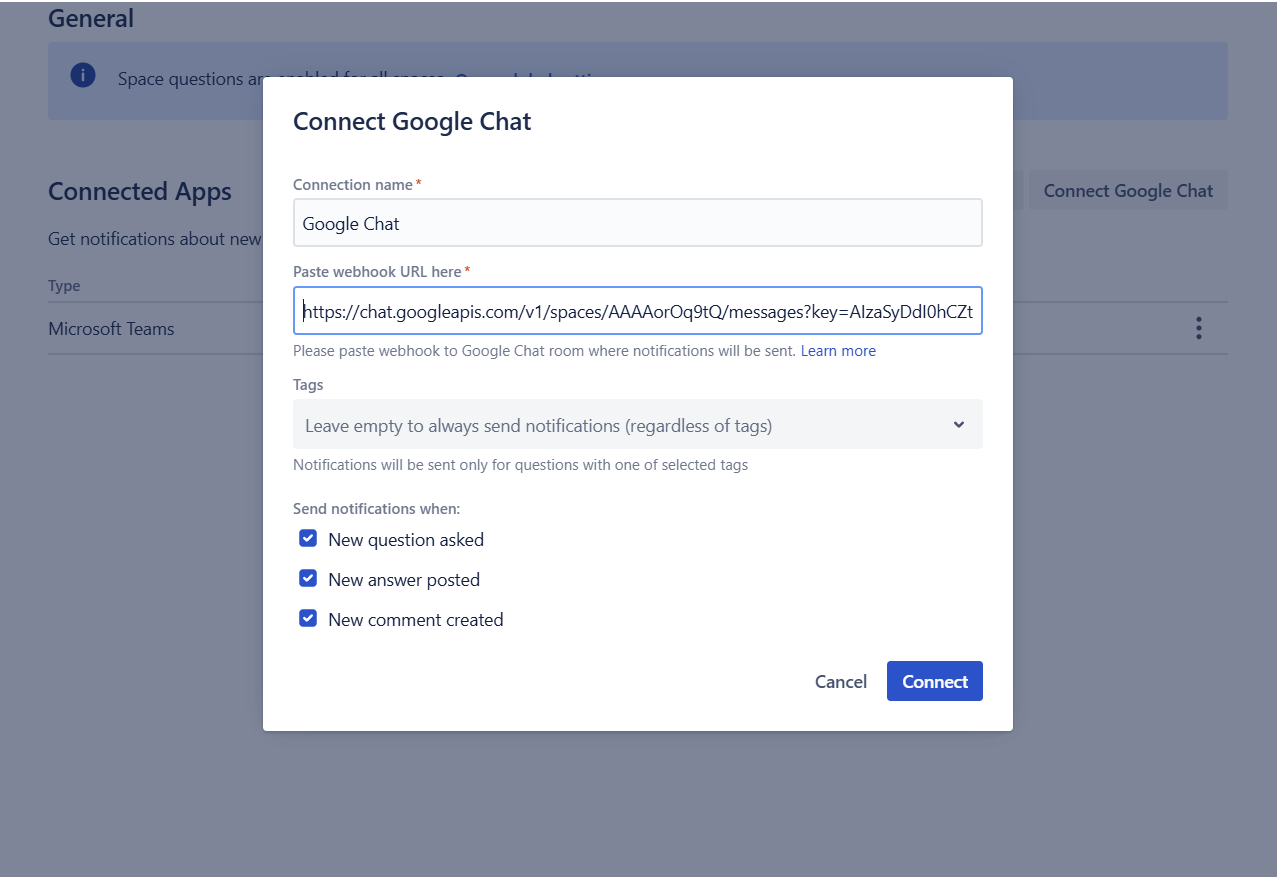
- Under Connected Apps, click Connect Google Chat
- Fill in the connection dialog:
- Connection name - A name to identify this connection
- Paste webhook URL here - The URL you copied from Google Chat
- Tags - Optionally filter notifications by tag
- Send notifications when: New question asked, New answer posted, New comment created
- Click Connect
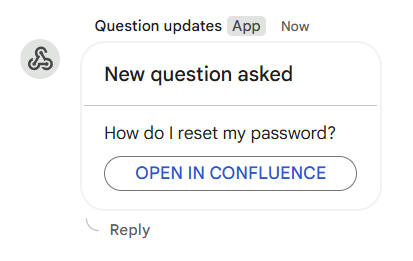
Once connected, notifications will appear in your Google Chat space:
Managing Connections
Connected integrations appear in the Connected Apps table. Click the menu icon (...) on any connection to edit or disconnect it.
Tip: You can create multiple Google Chat connections per space to send different tag-filtered notifications to different chat spaces.
Note: Webhooks must be enabled by your Google Workspace administrator. If you cannot create webhooks, contact your admin to enable incoming webhooks for your organization.