
Tags & Organization
Tags group questions by topic, such as deployment or billing. Reuse an
existing tag when it fits so people can find related questions together.
A space tag belongs to one Confluence space. A global tag can be used across spaces and is managed in the Global Questions space. The tags you can see depend on your access.
Create a Tag
Open the Tags tab. If it already contains tags, check whether one fits your topic before creating another. If the tag you need is missing and you have permission to create tags:
- Click Create tag.
- Enter a Label. Use a short, clear name such as
release-planning. Names are saved in lowercase; use hyphens instead of spaces. - Optionally add a Description to explain when to use the tag, and an icon.
- In the Global Questions space, check Visible in all spaces if the tag should be available across spaces. Clear it to keep the tag in that space.
- Click Create tag to save it.
Choose one name for each topic, such as javascript rather than separate
javascript and js tags. A short description can help people choose between
related topics.
Add or Remove Tags on a Question
When asking or editing a question:
- In Tags, start typing a name.
- Select a matching tag from the suggestions. Repeat to add another topic.
- To remove a tag, click the × beside its name.
- Submit the question or save your changes.
If you have permission to create tags, you can also create one from this field. New tags are saved immediately, even if you cancel the question. Without that permission, you can only select existing tags.
Removing a tag from a question does not delete it from the Tags tab or other questions.
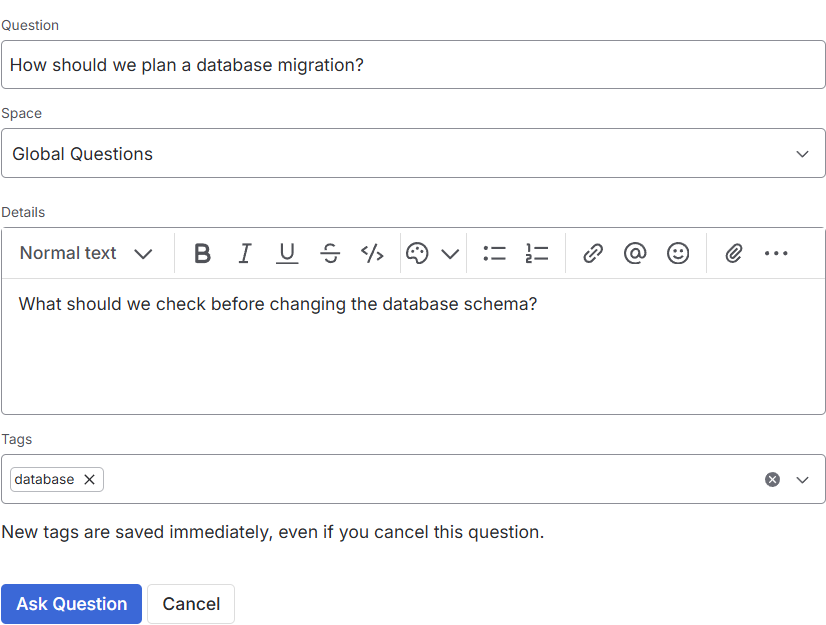
The database tag is selected on this draft question. Use × to remove it.
Find Questions by Tag
Open the Tags tab and use Search tags to find a name. Choose Tiles for a quick overview or List to see descriptions and creation dates. Sort by lets you order tags by name, newest first, or popularity.
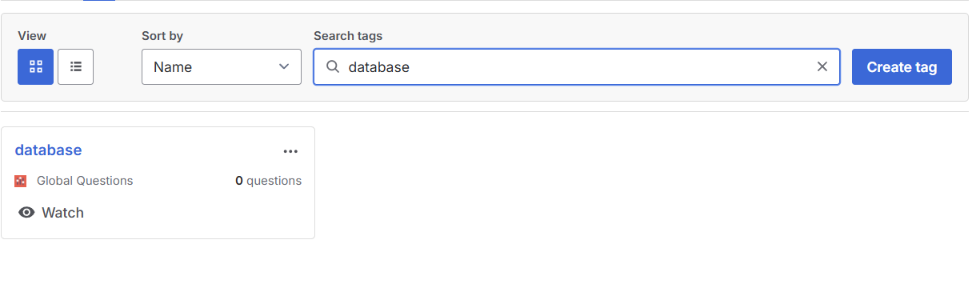
Search by name to find a tag, then open its questions or watch it.
Click a tag name to see its questions. You can also click a tag on a question. If Load more appears, more questions remain to check for that tag. A page can contain no matches, so finding older tagged questions may take several clicks. The selected tag appears above the results; click View all questions to clear the filter, including when there are no results.
Watch a Tag
On the Tags tab, click Watch beside a topic to receive email notifications about new questions with that tag. The button changes to Watching; click it again to stop. Watching is not available to guests.
See Email Notifications for notification settings.
Edit, Merge or Delete Tags
Open More actions on a tag tile or list row. You will only see actions you have permission to use.
Edit a Tag
Choose Edit, update the label, description or icon, then click Save. Changing the label updates the tag on questions that use it. For tags in the Global Questions space, you can also change Visible in all spaces.
Merge Duplicate Tags
To combine two tags, edit one and change its Label to the other tag's name. The form warns that saving will merge them. Check the name carefully, then click Save. Questions using the old tag will use the remaining tag.
Delete a Tag
Choose Delete, then confirm. This removes the tag from the Tags tab, but its labels remain on existing questions. You can remove those labels by editing each question. Deleting a tag cannot be undone.
Choose Who Can Create Tags
A space administrator can let people use existing tags while allowing only selected people to create new ones. Confluence Free does not allow these permission changes.
- Open the space's app permissions.
- Keep Tags View enabled for people who should select tags, and clear Tags Add for people who should not create them. Check their groups and All Confluence users too: another grant can still allow creation.
- Give Tags View and Add to the people who should create tags, including administrators if needed. Save and refresh Community Questions.
Repeat this for each relevant space, including the Global Questions space for global tags. Enable Add again to allow creation. Existing tags and the tags already on questions are unchanged. Tags Delete is separate: it controls deleting a tag, not removing it from a question.
The permissions guide shows an example permissions table and explains how permissions from different groups combine.