Questions Macro
Add questions to a Confluence page in two ways: use Question to create and link one question, or Questions to display a filtered list. You can also paste a link to an existing question.
Paste a link to an existing question
Open an existing question and copy its browser address. Paste the link into a Confluence page editor on the same site to insert a clickable question chip.

Create and link one question
- Edit a Confluence page, type
/Question, and select Question. - Enter a title and add any details, tags or attachments you need.
- Check the destination Space. It defaults to the page’s space when Questions is enabled there; otherwise, choose an enabled destination.
- Select Create question and insert link, then publish or update your page.
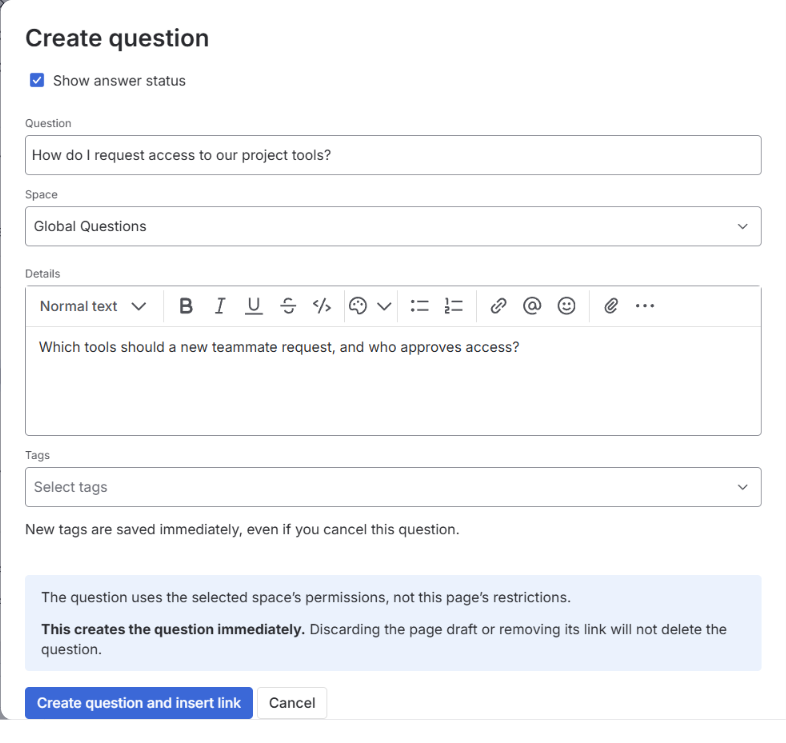
You can add up to five tags. A newly created tag is saved immediately, even if you cancel the question.
Edit an existing question link
Edit the Question macro to show or hide its answer-status badge. The status updates when the page opens or refreshes. To change the question itself, select Open question; saving the link settings does not create another question.
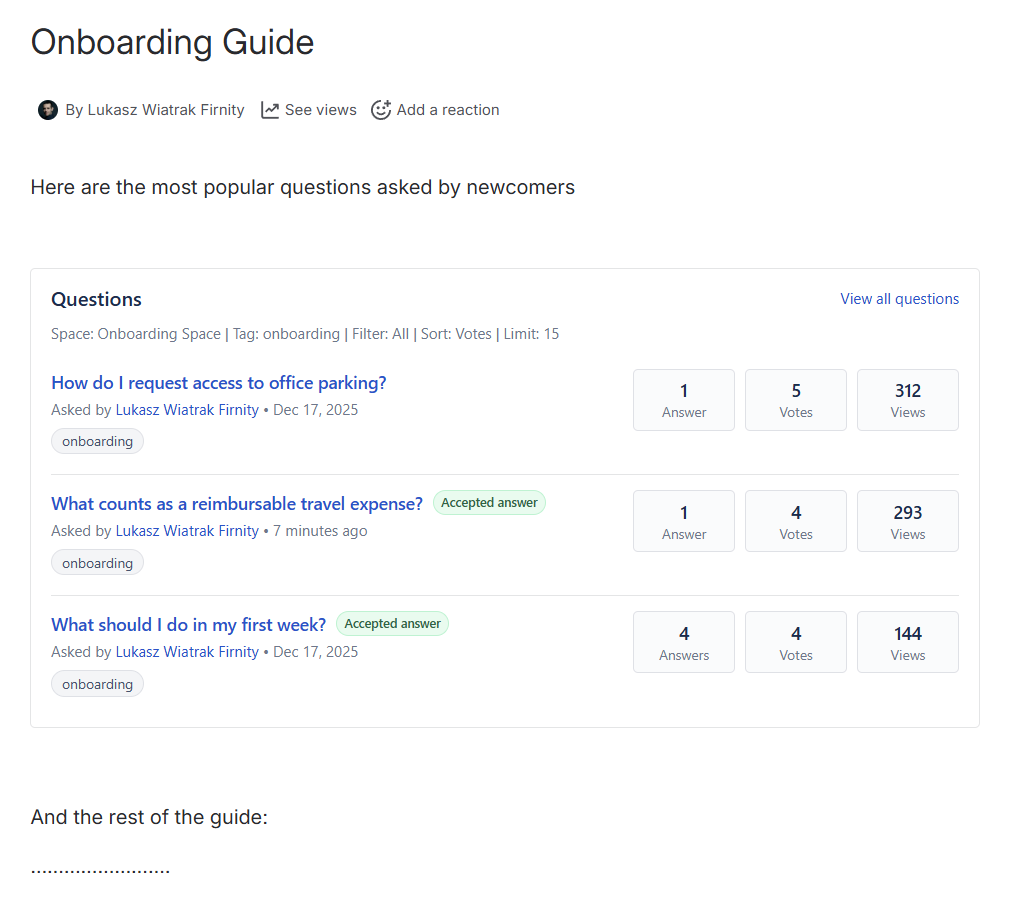
Add a questions list
- Edit a Confluence page, type
/Questions, and select Questions. - Choose which questions to show and select Save.
- Publish or update the page.
Readers can open a question from the list to read or contribute answers.
Configure the macro
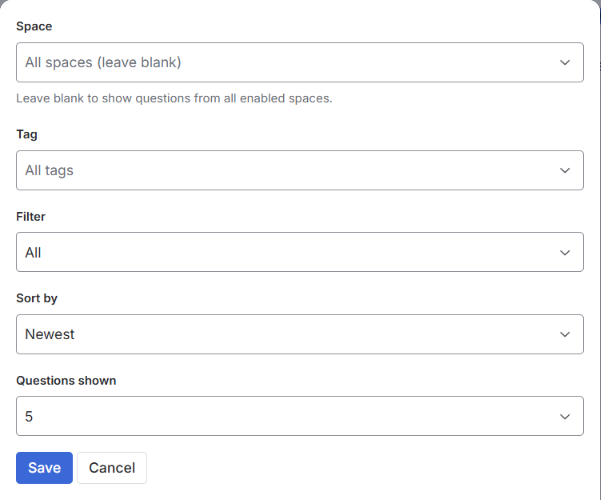
Use Space and Tag to focus the list on a team or topic. Space defaults to the current space when Questions is enabled there; leave it blank for a list across enabled spaces. Type in the tag selector to find tags beyond the initial suggestions.
For a team dashboard, filter for Unanswered or No accepted answer to highlight questions needing attention. The latter also includes questions that have answers but no accepted answer. Choose the sort order and list length to suit the page.
Voting permissions and sorting
If you do not have permission to view votes in a space, vote counts are hidden for questions from that space. When sorting by votes is not allowed, the macro falls back to newest.
View all questions
View all questions opens the selected space’s Questions view, or the global view for a cross-space list when global Questions is enabled.
Troubleshooting
A question could not be created or linked
Keep the dialog open after a save failure so you can retry without losing your work. Retry saving continues with the same question if it was already created. If creation could not be confirmed, check Questions before starting again to avoid a duplicate.
A question link or its status is unavailable
Check that the question still exists and that you can access its destination space. Page restrictions do not grant access to the question. If only the answer status is unavailable, the link may still work; try refreshing the page.
A questions list is empty or unavailable
Check your space and tag filters, access to the selected space, and whether Questions is enabled there. A space admin can enable it under Space Settings → Apps → Community Questions.
If a tag-filtered list has fewer results than expected and Check more questions appears, select it to find more matches. Existing results remain visible, and the list stays within your chosen length. If the check fails, select the button again to retry.